

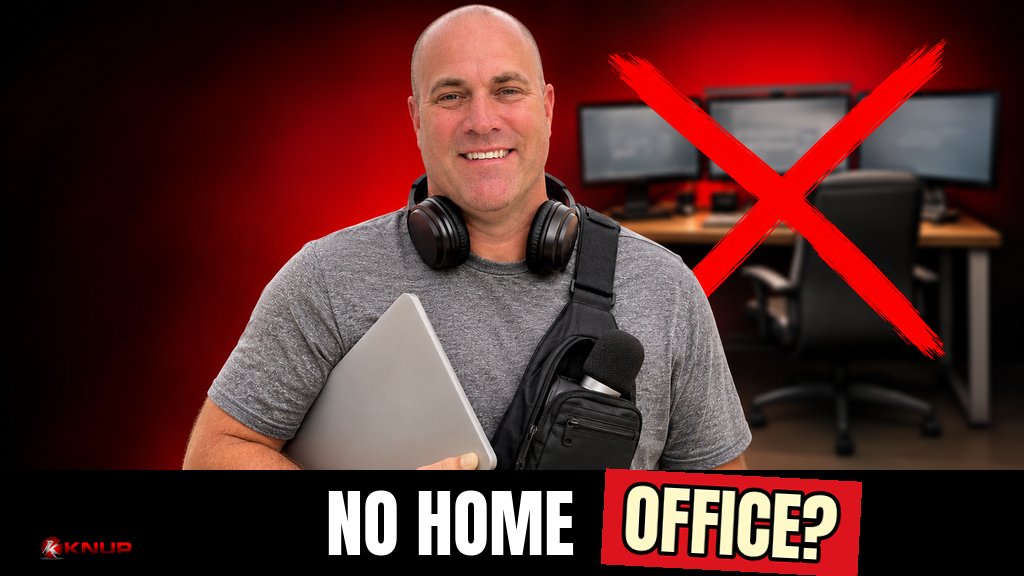
I have worked from home for myself, full-time, for about 12 years. For most of that time I did what everybody says you are supposed to do. I set up a permanent home office.
Then something changed. With digital nomad life just around the corner, I decided to eliminate that all together. I got rid of my multi-monitor setup and started working lean. Me and my MacBook. A nice remote mic to put in my bag. Headphones.
Now I have about 5 or 6 go-to spots at home, and 3 to 5 days a week I work somewhere outside the home.
Not saying this IS for everyone. But it's for ME!
If you are thinking about doing the same thing, or you simply do not have room for a dedicated office, this is the practical version. What to keep, what to drop, and what you have to get right when your office is whatever room you are sitting in. The bigger picture of why we are going portable is in What We're Changing So We Can Work From Anywhere. This post is the day-to-day setup.
Why work without a home office
A home office is great until it becomes the only place you can work.
When the whole setup lives on one desk, every other place feels like a downgrade. Without meaning to, you tie your work to a single room.
Working lean flips that. If everything you need fits in a bag, any decent seat becomes the office. That matters a lot if travel is coming, and it matters if you just want a change of scenery on a Tuesday.
It is not free, though. You give up screen space, a perfect chair, and a setup you never have to think about. The goal is to handle those trade-offs on purpose.
Step 1. Shrink the kit to what fits in one bag
Start by asking a simple question about every piece of gear you use for work. Would I carry this with me?
My kit is short on purpose:
- Laptop. One machine that does everything.
- Remote mic. A nice one that lives in my bag.
- Headphones. For calls, for focus, and for blocking out whatever is happening around me.
That is the core. Chargers and cables come along, but there is no second setup waiting at a desk somewhere. If you are building your own kit, give everything one home in the bag, and only add something after you have missed it more than once.
If you want the bigger packing system for longer trips, I broke that down in How to Pack for a Long Trip With Just a Backpack.
Step 2. Pick 5 or 6 go-to spots at home
No home office does not mean no plan. I have about 5 or 6 places at home I rotate through. A short list matters, because "I will just work wherever" usually turns into wandering around looking for a seat.
When you are picking your spots, look for:
- A surface at a reasonable height. A table or counter usually beats a lap for longer sessions.
- A seat that supports your back. You do not need an expensive chair, but some support helps.
- Good light without glare. More on that below.
- Power nearby, or a full battery plan.
- At least one or two spots that work for calls.
Then match the spot to the work. Deep work in one place. Calls in another. Lighter admin wherever is comfortable.
Step 3. Make a laptop comfortable for real workdays
This is the part most people skip when they ditch the desk. A laptop is built for portability, not posture. The screen and keyboard are attached, so you usually choose between looking down at the screen or reaching up to type.
OSHA's Computer Workstations eTool recommends putting the screen directly in front of you, generally 20 to 40 inches from your eyes, with the top of the screen at or slightly below eye level. It also notes that a screen that is too high or too low can push your head, neck and shoulders into awkward postures that lead to fatigue.
You will not hit those numbers perfectly at a kitchen table. But you can get closer:
- Raise the screen when you are settling in for a long session. A laptop stand, or even a stable stack of books, can bring the screen up.
- Use a separate keyboard and mouse at your main spots if you raise the screen. That keeps your hands at a comfortable height.
- Keep the laptop directly in front of you, not off to the side.
- Change positions often. OSHA's page on good working positions says that no matter how good your posture is, sitting still in the same position for long periods is not healthy, and it recommends standing up, stretching and walking around periodically.
That last one is actually where working without a home office can help. Rotating spots builds movement into the day.
I am not an ergonomics expert. If you have pain or a specific condition, talk to a professional about your setup.
Step 4. Watch the light and the glare
Lighting is the sneaky problem with working all over the house.
OSHA's guidance on the workstation environment says bright light shining on the screen can wash out the image, and bright light behind the screen creates contrast problems. Its suggestion is to put the face of the screen at a right angle to windows and other bright light sources.
In plain terms:
- Do not sit with a bright window directly behind your screen.
- Do not sit with a bright window directly behind you, reflecting on the screen.
- Turn so the window is off to the side.
This matters for video calls too. A window behind you turns you into a silhouette.
Step 5. Get your connection and security right
At home, your Wi-Fi is usually the easy part. Out of the house is where you have to think a little more.
The FCC's Wi-Fi and Bluetooth security tips cover the basics well:
- Watch out for imposter hotspots. If more than one network seems to belong to the place you are at, check with the staff before you connect.
- Look for "https" on websites where you exchange information.
- Turn off auto-connect so your devices do not jump onto random networks that are not on your trusted list.
- Consider a VPN if you use public Wi-Fi on a regular basis. The FCC notes that a VPN encrypts the traffic between your device and the internet.
- Use your phone's data plan for sensitive stuff. The FCC says that may be more secure than public Wi-Fi when you are sending sensitive information.
Two more basics from CISA that matter even more when you work from different places:
- Turn on automatic updates. CISA's update software guidance points out that many updates are created to fix security risks.
- Turn on multifactor authentication for email and your important accounts. CISA's MFA guide explains that even if someone steals your password, they still cannot meet the second step to get in.
- Use strong, unique passwords. CISA's password guidance recommends long (at least 16 characters), random and unique passwords, stored in a password manager.
None of this is exciting. But when one laptop is your whole office, everything lives on that one machine.
Step 6. Back up like the laptop could disappear tomorrow
This is the other side of working lean. If everything is on one laptop, make sure your work does not only live on it:
- Keep your working files synced to the cloud so they are not tied to one device.
- Run a local backup too. On a Mac, Apple's Time Machine guide explains how to back up to an external drive, and Apple recommends a backup drive with at least twice the storage of your Mac. Time Machine also makes automatic hourly, daily and weekly backups once it is set up.
- Test a restore once in a while. A backup you have never opened is a guess.
Step 7. Protect your focus when the house is the office
Without a door that says "office," you have to create the boundaries another way.
What helps:
- Headphones on means working. Even without music, they are a clear signal, to you and to anyone around you.
- Name the outcome before you sit down. "Finish this page" works better than "do some work."
- Use the spot change as a reset. Done with calls? Move. Starting deep work? Move.
- Shut the laptop when you are done. No office door means it is easy for work to leak into the whole day. Closing the laptop and putting it in the bag is the new "leaving the office."
Step 8. Take it outside the house
The lean setup really pays off when you leave. Everything is already in the bag, so working somewhere else is not a project. These days, 3 to 5 days a week I work somewhere outside the home. The same rules apply out there. Pick seats where you can stay a while, check the network name, keep the screen out of the glare, and know where power is.
If you want ideas for doing that on purpose, I wrote about it in How to Build in Public From Epic Places Worth Working. And if you are in Orlando, my running list of seats is in Best Places to Work Remotely at Walt Disney World.
Who this is not for
I meant it when I said this is not for everyone.
A full home office still makes sense if your work truly needs a lot of screen space all day, if you rely on hardware that does not travel, or if you do your best work in the same seat every day. Working lean is a better fit if you want flexibility, if travel is part of the plan, or if you are short on space.
Final thoughts
Working remotely without a home office comes down to a few decisions. Shrink the kit to one bag. Pick a short list of spots. Make the laptop comfortable and keep moving. Watch the glare. Lock down your accounts. Back up everything. Create focus with habits instead of a door.
For me, it is a MacBook, a mic, headphones and a handful of spots. That is the whole office now. It is lighter, it moves when I move, and it is getting me ready for what is next.
Not saying it IS for everyone. But it might be for you.
FAQ
Can you work from home without a dedicated office?
Yes. Plenty of people work from home with a laptop and a few spots instead of one dedicated room. The key is planning a short list of places that work, keeping your gear in one bag, and paying attention to comfort, lighting and focus so the setup works for full days and not just an hour here and there.
What do you need to work remotely with just a laptop?
At minimum, a reliable laptop, its charger, and headphones. A good external mic helps calls and recordings sound better. For longer sessions, a laptop stand with a separate keyboard and mouse can make the setup more comfortable. Cloud sync and a regular backup keep your work safe if anything happens to the laptop.
How do you make a laptop setup more ergonomic?
OSHA recommends a screen directly in front of you, about 20 to 40 inches from your eyes, with the top of the screen at or slightly below eye level. With a laptop, that usually means raising the screen and using a separate keyboard and mouse. OSHA also recommends changing positions and getting up and moving periodically.
Is it safe to work on public Wi-Fi?
It can be, with precautions. The FCC recommends confirming the real network name with staff, using sites with https, turning off auto-connect, and considering a VPN if you use public Wi-Fi regularly. It also says using your phone's data plan may be more secure for sensitive information.